To edit files on the command line, you can use an editor such as vi. To open the file, run
[text]vi /path/to/file[/text]
Now you see the contents of the file (if there is any. Please note that the file is created if it does not exist yet.).
The most important commands in vi are these:
Press i to enter the Insert mode. Now you can type in your text.
To leave the Insert mode press ESC.
To delete the character that is currently under the cursor you must press X (and you must not be in Insert mode because if you are you will insert the character x instead of deleting the character under the cursor). So if you have just opened the file with vi, you can immediately use x to delete characters. If you are in Insert mode you have to leave it first with ESC.
If you have made changes and want to save the file, press : x (again you must not be in Insert mode. If you are, press ESC to leave it).
If you haven’t made any changes, press :q to leave the file (but you must not be in Insert mode).
If you have made changes, but want to leave the file without saving the changes, press :q! (but you must not be in Insert mode).
Please note that during all these operations you can use your keyboard’s arrow keys to navigate the cursor through the text.
Edit files on the linux command line
12 de Março de 2014 – 17:19
Check your newsletter content quality
20 de Fevereiro de 2014 – 10:08
Low quality content means, a high percentage of your emails did not get pass the ISP’s spam filters and got sent to spam immediately. ISP means the receiving end, eg. gmail, hotmail, yahoo mail, etc.
Try using this tool to check your spam score: http://www.contactology.com/check_mqs.php
Or this tool (you need to paste in full headers of your email: http://spamcheck.postmarkapp.com/
If you’ve been sending emails to people who did not opt-in to receive your emails, most people will mark your emails as spam. Overtime, you’ll accumulated a high spam score.
Exchange 2010 Database size
7 de Fevereiro de 2014 – 17:28
- Review the Purge items from the Recoverable Items folder. For details, see Clean Up the Recoverable Items Folder.
- Yes ESEutil /D is the command
- Safe? Yes relatively, however, that said
- before you ever run any type of utility against an Exchange database you should back it up just in case something goes sideways.
- you will need 110% of the EDB size to perform the defrag and
- during the time its being defragged ALL users for that database will be unable to connect.
- Time, well this depends upon many factors, i.e. CPU, Disk Speed, Memory, other processes etc. Basically I would plan to spend at least a full day on it. But whatever you do you need to be patient because it does take time to complete.
- Personally I think you would be better off to create a NEW database and use the New-MoveRequest so check out these two articles http://technet.microsoft.com/en-us/library/bb124495.aspx and http://technet.microsoft.com/en-us/library/bb124797.aspx since these will allow you to keep the system up and running while the data is being moved, however it does require more disk space until the process is done and then you can drop the old DB to gain all the space back.
Export to CSV all your Exchange 2007/2010 Email Addresses
5 de Fevereiro de 2014 – 11:41
If you want to export all your users email addresses to a CSV so you can see who has which alias you can do this with this Power Shell Command
[ps]
Get-Mailbox -ResultSize Unlimited
|Select-Object DisplayName,ServerName,PrimarySmtpAddress, @{Name=“EmailAddresses”;Expression={$_.EmailAddresses
|Where-Object {$_.PrefixString -ceq “smtp”}
| ForEach-Object {$_.SmtpAddress}}}
| Export-CSV c:\smtp.csv -NoTypeInformation
[/ps]
I have wrapped it here so just paste it in to Power Shell to run and this will show the Primary Email address and then all the alias addresses.
http://cscmblog.blogspot.pt/2012/02/export-to-csv-all-your-exchange.html
Concatenate data fields as binding expression
31 de Janeiro de 2014 – 16:29
Concatenate data fields as binding expression:
[html]
<asp:label id="Label1" runat="server"
text='<%# String.Format("{0}, {1}", Eval("ContactLastName"), Eval("ContactFirstName")) %>’>
</asp:label>
[/html]
how to implemented mailto in Hyperlink asp control inside the gridview:
[html]
<asp:HyperLink id="hl1" runat="server"
NavigateUrl='<%# Eval("Email" , "mailto:{0}") %>’
Text='<%# Eval("Email") %>’>
</asp:HyperLink>
[/html]
Redirect Domain
12 de Novembro de 2013 – 11:34
php
[php]
<?php
header(‘HTTP/1.1 301 Moved Permanently’);
header(‘Location: http://www.sitedeexemplo.com’);
?>
[/php]
.htaccess
[text]Redirect 301 / http://www.sitedeexemplo.com [/text]
HTML
[html]<!doctype html>
<html>
<head>
<meta charset="utf-8">
<title>Redireccionamento</title>
<meta http-equiv="refresh" content="1; url=http://www.sitedeexemplo.com" />
</head>
<body>
</body>
</html> [/html]
Javascript
[js]
<script type="text/javascript">
<!–
window.location = "http://www.sitesample.pt/dir"
//–>
</script>
[/js]
Bulk Rename Utility
12 de Novembro de 2013 – 10:45
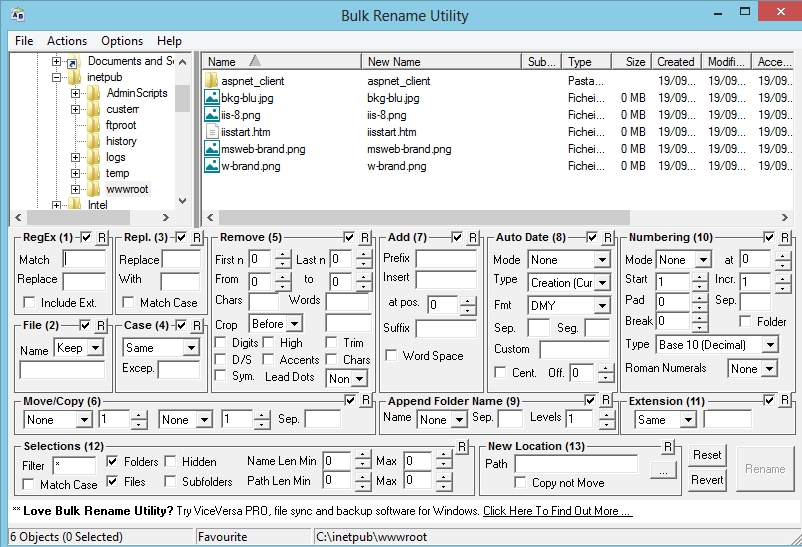 Bulk Rename Utility is an easy to use file rename program (a.k.a. file renamer). Renaming multiple files has never been easier! It has a small memory footprint so it can be left running all the time without consuming all your memory. It started as a freeware Visual Basic tool, but as its popularity has grown it has been completely rewritten in C++ to be robust and lightweight – and very, very fast! It can easily handle folders/discs containing well over 100,000 entries… and it can batch rename 1,000s of files in seconds.
The software is freeware and gets downloaded very frequently. It has a large base of regular users. Most of the features have originated from other users’ suggestions. As such, it is continually being enhanced and improved.
As well as being “recommended” by a number of web sites, Bulk Rename Utility has also appeared on many magazine cover-discs, from Brazil to Sweden.
If you have a suggestion for a new feature, get in touch and it could appear in a future release of the software!
Programmatically set the selected menu item in the Menu control
8 de Novembro de 2013 – 17:55
[vb]
Mnu1.Items(1).Selected = True
[/vb]
[vb]
Mnu1.FindItem("Nutrients").Selected = True
[/vb]
[vb]
mnu1.Items(indexToSelect).Selected = True
[/vb]
[vb]
MenuItem mi = this.Menu1.FindItem("Home");
mi.Selected = true;
[/vb]
[vb]
this.Menu1.Items[0].Selected = true;
[/vb]
Get First and last word from sentence
1 de Novembro de 2013 – 17:26
[vb]
Dim Nome As String = "Carlos Galhano"
Dim firstword As String = Nome.Substring(0, Nome.IndexOf(" "))
Dim lastWord As String = Nome.Substring(Nome.LastIndexOf(" "c) + 1)
Response.Write("first: " & firstword & " Last: " & lastWord)
[/vb]
Break lines at specific character in Notepad ++
25 de Outubro de 2013 – 11:45
- In Notepad++, click Search > Find.
- Click the Replace tab.
- Under the Search Mode group, select Regular expression.
- In the Find what text field, type
<span style="color: #ff0000;">],</span>\s* - In the Replace with text field, type
<span style="color: #ff0000;">],</span>\n - Click Replace All.

 Home
Home